Examples

Eight examples. Under each one is the sentence you tell your agent — and what ASODeck makes of it.

Every image is rendered from the operations shown. The app “Tagton” is made up.

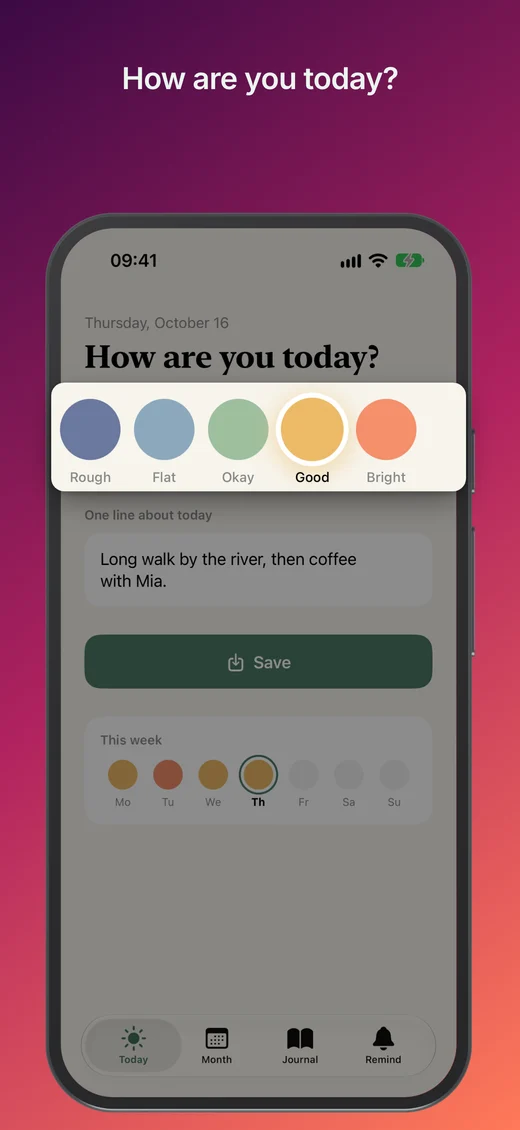
Example: Lift a card out

Lift a card out

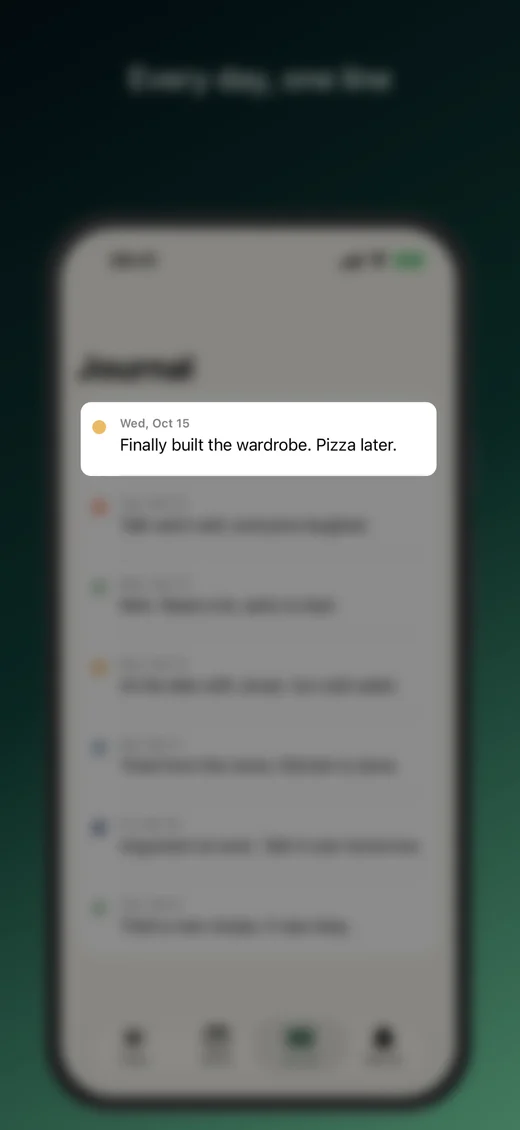
Request“Lift the mood picker out of the screenshot and dim everything else.”

The row sits as a card with a shadow on top of the device and reaches past its edge.

The operations behind it (annotate_panel, apply_operations)
[
  {
    "op": "set_background",
    "panels": [
      1
    ],
    "preset": "beere"
  },
  {
    "op": "annotate",
    "panels": [
      1
    ],
    "items": [
      {
        "kind": "lift",
        "area": {
          "x": 0.04,
          "y": 0.185,
          "w": 0.92,
          "h": 0.11
        },
        "scale": 1.14,
        "dim": 0.45
      }
    ]
  }
]
Example: Hide what is private

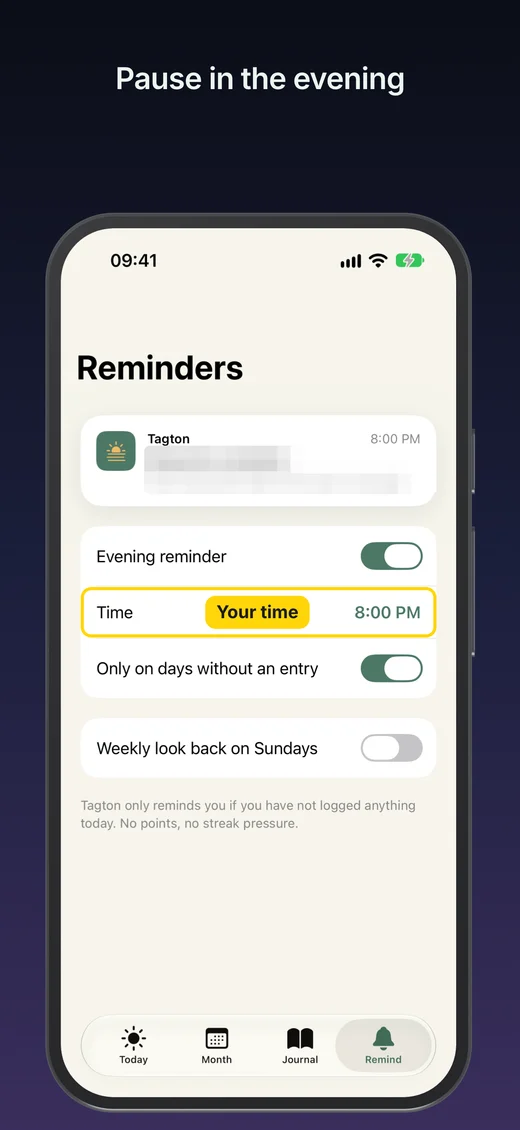
Hide what is private

Request“Pixelate the notification text at the top and mark the reminder time.”

The text is pixelated in the exported image and cannot be recovered; the time has an outline around it.

The operations behind it (annotate_panel, apply_operations)
[
  {
    "op": "set_background",
    "panels": [
      1
    ],
    "preset": "nacht"
  },
  {
    "op": "annotate",
    "panels": [
      1
    ],
    "items": [
      {
        "kind": "redact",
        "area": {
          "x": 0.21,
          "y": 0.25,
          "w": 0.74,
          "h": 0.056
        },
        "style": "pixel",
        "strength": 0.025
      },
      {
        "kind": "outline",
        "area": {
          "x": 0.05,
          "y": 0.413,
          "w": 0.9,
          "h": 0.058
        },
        "color": "#FFD60A"
      },
      {
        "kind": "label",
        "at": {
          "x": 0.5,
          "y": 0.442
        },
        "text": "Your time",
        "fill": "#FFD60A",
        "color": "#1B1B1F"
      }
    ]
  }
]
Example: Show the steps

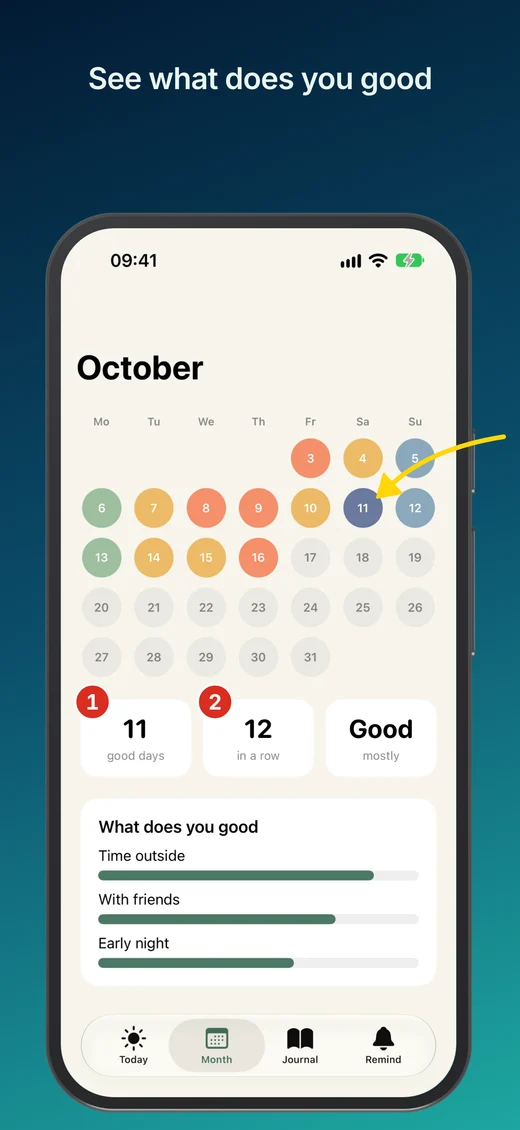
Show the steps

Request“Point an arrow at the rough day in the calendar and number the two figures below it.”

A curved arrow and two numbers, given in fractions of the screenshot and converted onto the canvas.

The operations behind it (annotate_panel, apply_operations)
[
  {
    "op": "set_background",
    "panels": [
      1
    ],
    "preset": "tiefsee"
  },
  {
    "op": "annotate",
    "panels": [
      1
    ],
    "items": [
      {
        "kind": "arrow",
        "from": {
          "x": 1.12,
          "y": 0.24
        },
        "to": {
          "x": 0.8,
          "y": 0.31
        },
        "color": "#FFD60A",
        "curve": 0.3
      },
      {
        "kind": "badge",
        "at": {
          "x": 0.08,
          "y": 0.545
        },
        "value": 1
      },
      {
        "kind": "badge",
        "at": {
          "x": 0.39,
          "y": 0.545
        },
        "value": 2
      }
    ]
  }
]
Example: Guide the eye

Guide the eye

Request“Keep the first journal entry sharp and let everything else go blurred and darker.”

Only the chosen area stays sharp; the rest is softened and dimmed.

The operations behind it (annotate_panel, apply_operations)
[
  {
    "op": "set_background",
    "panels": [
      1
    ],
    "preset": "nordlicht"
  },
  {
    "op": "annotate",
    "panels": [
      1
    ],
    "items": [
      {
        "kind": "focus",
        "area": {
          "x": 0.05,
          "y": 0.2,
          "w": 0.9,
          "h": 0.085
        },
        "dim": 0.45,
        "blur": 0.012
      }
    ]
  }
]
Example: Background with a print effect

Background with a print effect

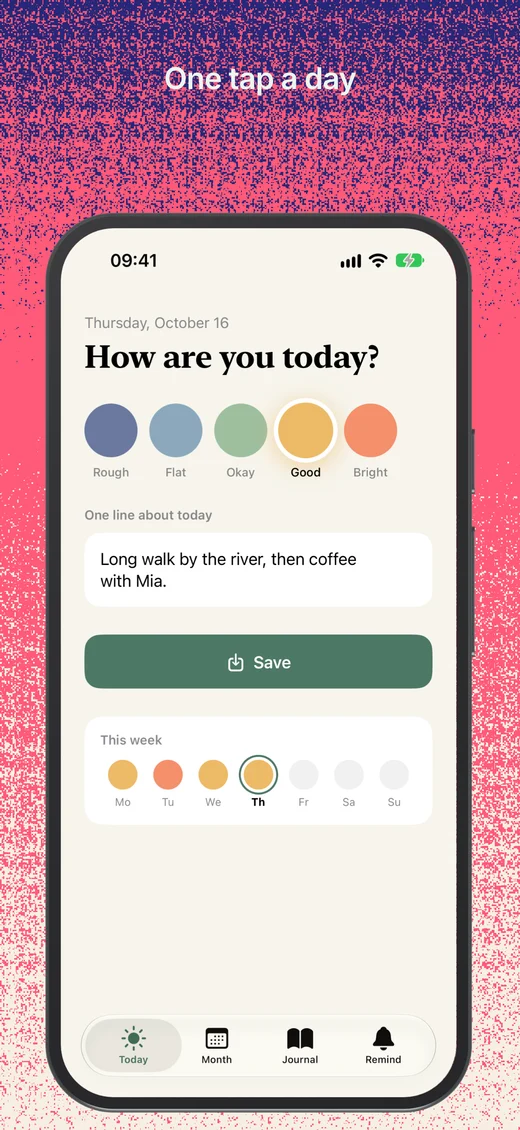
Request“Use the “Sunset” gradient as the background and add a risograph effect on top.”

The effect only touches the background — device, screenshot and type stay as they are.

The operations behind it (list_backgrounds, apply_operations)
[
  {
    "op": "set_background",
    "panels": [
      1
    ],
    "preset": "abendrot",
    "finish": {
      "kind": "riso"
    }
  }
]
Example: Newsprint

Newsprint

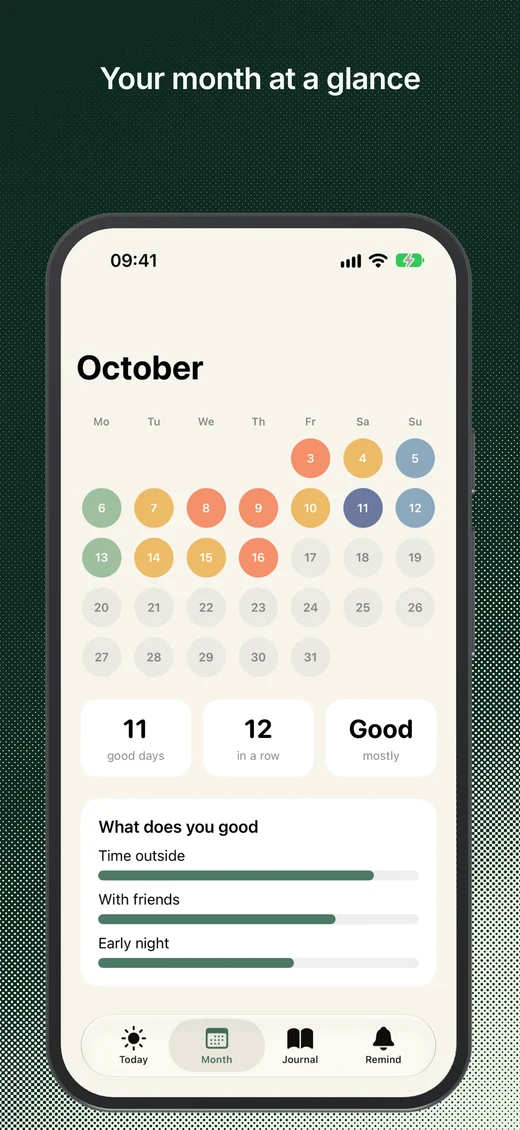
Request“Turn the background into a newsprint screen in dark green on light paper.”

Halftone dots in two colors, computed from the gradient underneath.

The operations behind it (list_backgrounds, apply_operations)
[
  {
    "op": "set_background",
    "panels": [
      1
    ],
    "preset": "nordlicht",
    "finish": {
      "kind": "zeitung",
      "ink": "#0F2A22",
      "paper": "#E9F2E4"
    }
  },
  {
    "op": "update_layer",
    "panels": [
      1
    ],
    "layerId": "headline",
    "patch": {
      "color": "#F4FBF6"
    }
  }
]
Example: Device fades out

Device fades out

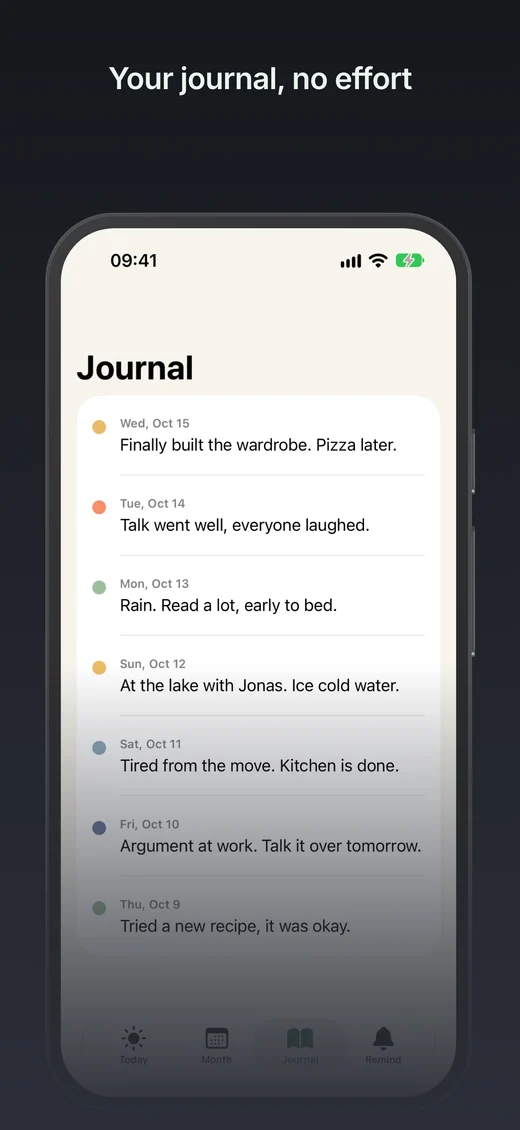
Request“Let the device fade into the background towards the bottom.”

The device fades into the background over its lower half, shadow included.

The operations behind it (apply_operations)
[
  {
    "op": "set_background",
    "panels": [
      1
    ],
    "preset": "graphit"
  },
  {
    "op": "update_layer",
    "panels": [
      1
    ],
    "layerId": "device-1",
    "patch": {
      "fade": "bottom",
      "fadeSize": 0.5
    }
  }
]
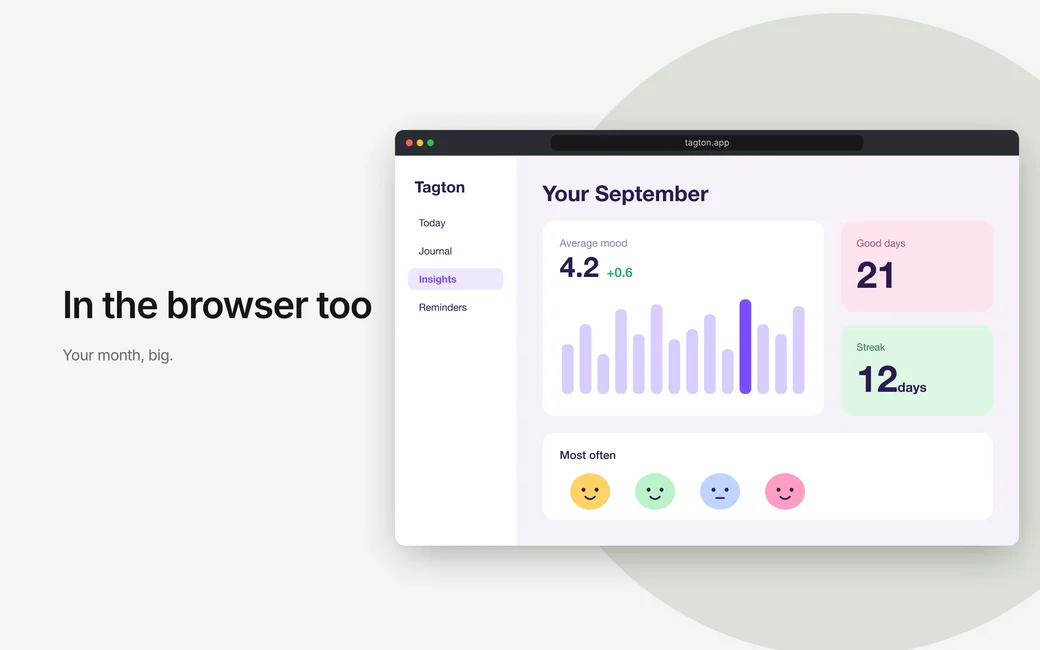
Example: In a browser window

In a browser window

Request“Show the Mac screenshot in a dark browser window with the address tagton.app.”

A drawn browser window with an address bar instead of the MacBook — made from geometry, not a product photo.

The operations behind it (apply_operations)
[
  {
    "op": "set_device_frame",
    "panels": [
      1
    ],
    "frame": "browser-dark"
  },
  {
    "op": "update_layer",
    "panels": [
      1
    ],
    "layerId": "device-1",
    "patch": {
      "address": "tagton.app"
    }
  }
]

To try it without your own images: choose “Sample app” in the editor — it creates Tagton with four screens, a deck and a promo set, and one click removes it again. How to connect an agent is under Connect agent.

Examples with the request behind them — ASODeck